Go to the Terrain view, Object view, Module placement or Module elevation.
Select one or more objects.
Use the context menu option Copy or use the shortcut Ctrl-C.
The Clipboard dialog is opened
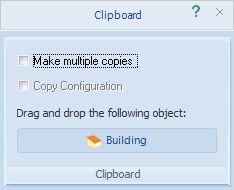
Activate Multiple copies if you want to create multiple copies in succession.
If configured PV modules exist on the object to copy, you can copy this configuration. To do this, activate Copy configuration. Note that the configured modules to be copied must be completely on the object to be copied.
With the mouse pointer, pull (keep the mouse button down) the copy from the button surface in the lower portion of the window or
Close the dialog.